
A Point of Sale (POS) integration connects your voucher platform with the system used at your business location to process sales. When connected, staff can scan or enter voucher details during checkout to validate and redeem vouchers.
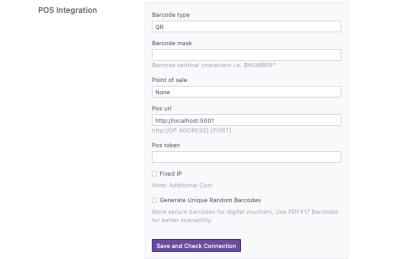
This page covers the settings common to any POS. Setup differs by system, so start with your own:
- OneTap POS — connecting vouchers to WizBang OneTap.
- Kounta POS — connecting vouchers to Lightspeed, formerly Kounta.
- Without a POS — selling vouchers and redeeming them by hand.
Before you get started
Contact your POS provider or partner to confirm compatibility and arrange the integration setup. The required connection details will be provided during the setup process.
Connection settings
To configure POS integration, you will need the connection details provided by your POS system.
- Barcode Type
- Barcode Mask
- Point of Sale
- POS URL
- POS Token
- Fixed IP
- Unique Random Barcodes
For a definition of each field, see the Field Reference.
Accounts
Accounts are used to manage voucher code ranges. Each account contains a block of voucher codes assigned for a specific voucher type, such as physical or digital vouchers.

- Account Code Range: The range of voucher codes available within the account.
- Type: Indicates whether the vouchers are Physical or Digital.
- Remaining: The number of unused voucher codes still available in the account.
Select + Add to create a new account code block.
Reserving a block ahead of time means a voucher can be issued and used immediately, without the POS having to create an account first. Keep separate blocks for physical and digital vouchers, and watch the Remaining column so you allocate the next block before you run out.
Barcode format
The barcode is what staff scan at the counter, so it has to match what your terminals expect.
- Barcode Type — the barcode format your terminals read.
- Barcode Mask — any prefix or sentinel characters your setup requires around the code.
- Generate Unique Random Barcodes — issues a unique barcode per voucher rather than encoding the account number directly.
Confirm the format with your POS provider before you issue vouchers in volume. Changing it later does not change barcodes already in customers’ hands.
Test a real redemption
Before you go live, sell yourself a voucher through the test checkout and redeem it at the counter.
Check that:
- The barcode scans first time.
- The correct value is applied to the sale.
- The remaining balance is right when the voucher is only partly spent.
- The voucher shows as used in your Dashboard.
Troubleshooting
If a voucher will not redeem, check your connection details are still valid, the voucher is active and not expired, and the barcode matches the configured type and mask. See Troubleshooting Voucher Errors.
Contact Support
If you need additional assistance, please contact your POS provider or support@appropo.io. Include details about the issue you’re experiencing so we can help resolve it as quickly as possible.