
Create multiple e-vouchers at once by uploading a CSV (Comma-Separated Values) file.
Bulk creation can be useful when you need to issue a large number of vouchers for purposes such as:
- Corporate gifts
- Promotional campaigns
- Customer rewards
- Events
- Other bulk voucher distributions
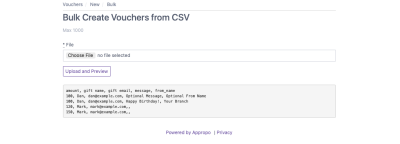
How To Create a Bulk Voucher
The bulk voucher process uses a CSV file containing the details for each voucher.
Each row in the CSV represents one voucher. Once the file is prepared, upload it through the voucher dashboard to create the vouchers.
1. Prepare Your CSV
Create a spreadsheet using Excel, Google Sheets or another spreadsheet application.
Your CSV must include the following column headings:
- Amount — the value of the voucher.
- Gift Name — the name of the recipient.
- Gift Email — the email address where the voucher will be sent.
- Message — the message included with the voucher.
- From_Name — the name of the person or business sending the voucher.
Make sure the column headings match the required format.
| Amount | Gift Name | Gift Email | Message | From_Name |
|---|---|---|---|---|
| 50 | Jane Smith | jane@example.com | Happy Birthday! | John Smith |
| 100 | Alex Brown | alex@example.com | Thank you! | Appropo |
Each row will be used to create a separate voucher.
2. Save the File as a CSV
Once you have added all voucher details, save or download the spreadsheet as a CSV file.
- In Excel, select Save As and choose
CSV. - In Google Sheets, select File → Download → Comma Separated Values (.csv).
Save as CSV
Make sure you are uploading the CSV version of your spreadsheet rather than an Excel or Google Sheets file.
3. Upload the CSV
Once your CSV is ready, go to the Bulk Create section of your voucher dashboard and upload your file.
Before uploading, check that:
- All required columns are included.
- The column headings are correct.
- Each voucher has an amount.
- Recipient names and email addresses are entered correctly.
- The file has been saved as a CSV.
4. Create the Vouchers
After the CSV has been uploaded, the information in each row is used to create a voucher.
Important
The recipient details and message are used for the voucher email. Review the information carefully before submitting the file.
Once the vouchers have been created, use your voucher Dashboard to manage and track them.
If you are experiencing errors or issues with your Bulk Vouchers, see Troubleshooting for more information.