
Once your voucher system is set up, the dashboard is where you track sales and manage individual vouchers. You can view voucher details such as active and expired vouchers, purchased vouchers, and more.
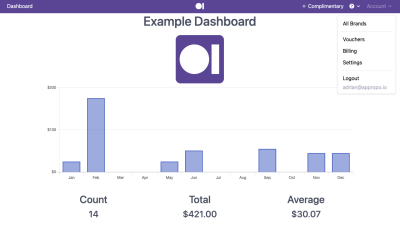
Sales summary
- Monthly Sales Graph: Displays voucher sales value within a year.
- Count: The total number of vouchers sold year to date.
- Total: The total value of vouchers sold year to date.
- Average: The average value of vouchers sold year to date.
- Liability: The total value of vouchers sold but not yet redeemed year to date.
Reading these numbers
Average tells you whether your predefined amounts are set at the right level. If nearly everyone picks your lowest option, your amounts may be pitched too high. If the average sits at your top option, you are probably leaving money on the table and could add a higher one. See Voucher Settings for changing your amounts.
Liability is money you have already banked but have not yet earned, because the customer can still come in and spend it. It is worth watching for two reasons: your accountant will want it at balance date, and a large unredeemed balance is a prompt to remind customers their voucher is waiting.
The Monthly Sales Graph makes voucher seasonality obvious. Most hospitality venues see sharp peaks before Christmas and Mother’s Day, which is useful for planning when to promote.
Voucher details
Use the tabs to narrow the list:
- All: Shows all recent vouchers.
- Active: Shows vouchers currently available for use.
- Expired: Shows vouchers that are no longer valid.
- Errors: Shows vouchers that were not processed successfully.
Check the Errors tab regularly. A voucher sitting there is one a customer has paid for and not received, so it is the tab most likely to turn into a complaint.
Each voucher in the list shows:
- Reference
- A unique code used to identify the voucher.
- Voucher
- The number of times the voucher has been used.
- Date
- When the voucher was created or purchased.
- Customer
- The customer who purchased the voucher.
- Giftee
- The person the voucher was purchased for.
- Account
- The account number associated with the voucher purchase. This identifies the customer account linked to the transaction and can be used to locate related voucher or purchase details.
- Status
- Shows the current status of the voucher, such as
active,used,scheduled, orfailed.
Customer and Giftee are often different people, since vouchers are usually bought as gifts. When a customer contacts you about a voucher, ask which of the two they are, as searching for the wrong name is the usual reason a voucher appears to be missing.
Select View details to see more information, including voucher history, and purchase details. The history is the record to check when a customer disputes a balance, as it shows what happened to the voucher and when.
See Troubleshooting for more information on errors.
Filtering vouchers
Use the Search bar to find specific vouchers. The reference code is the most reliable thing to search on, as customers often quote a name that differs from the one on the order.
Select View All Vouchers to view vouchers within a specific date range using Quicklinks, the Start Date and End Date fields. Use a date range when a customer knows roughly when a voucher was bought but cannot find the code.
Common tasks
-
A voucher has not arrived — check the Errors tab first, then confirm the Giftee email on the order. You can
Retrya failed voucher. See Troubleshooting. - A customer wants a refund — refunds are processed through the channel that took the payment, not from this dashboard. See Refunds.
- A voucher will not redeem in-store — check the voucher is active and not expired, then check your POS connection. See Point of Sale.
- You want to send someone a voucher for free — use a Complimentary Voucher rather than refunding or discounting.