
Connect your vouchers to Lightspeed (formerly Kounta) so staff can validate and redeem a voucher at the counter as part of a sale.
Voucher value is held against a voucher account. When a customer buys a voucher, Appropo issues it against an account in your allocated range; when they spend it at the counter, the POS draws down the balance.
This page covers what is specific to Lightspeed. See Point of Sale for the settings common to any POS, including accounts, barcode fields and testing.
Before you start
Contact your Lightspeed partner to confirm your site is set up for voucher redemption and to get your connection details. If you need help connecting Appropo, contact us.
What you need
- A Lightspeed (Kounta) site set up for voucher redemption.
- The connection details and credentials supplied by Lightspeed.
- A block of voucher accounts allocated for use.
1. Connect Appropo to Lightspeed
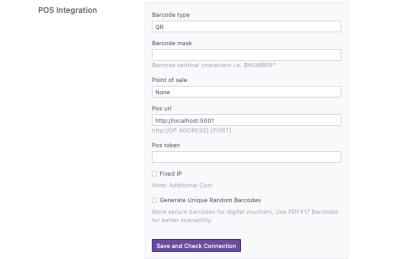
- Go to
Settings→POS. - Select Lightspeed as the Point of Sale.
- Enter the connection details and credentials supplied by Lightspeed.
- Use the test button to confirm the connection.
- Click
Save.
2. Allocate voucher accounts
Go to the POS section, select + Add, enter the account code range, and set whether the block is for Physical or Digital vouchers.
See Accounts for what the account fields mean.
3. Set your barcode format
Confirm the barcode type and any mask your terminals require with your Lightspeed partner, then set them in the POS section.
See Barcode format for the full set of barcode settings.
4. Test and go live
Sell yourself a voucher through the test checkout and redeem it at the counter before you switch Live on. See Test a real redemption for what to check.
If a voucher will not redeem, confirm your connection details are still valid, then work through Troubleshooting.
Contact Support
If you need additional assistance, please contact your POS provider or support@appropo.io. Include details about the issue you’re experiencing so we can help resolve it as quickly as possible.