
Connect your vouchers to WizBang OneTap so staff can scan a voucher at the counter and redeem it against a sale, instead of checking it by hand.
Voucher value is held as credit on a OneTap account. When a customer buys a voucher, Appropo loads the value onto an account; when they spend it, the POS draws down that credit and the remaining balance stays on the account for next time.
This page covers what is specific to OneTap. See Point of Sale for the settings common to any POS, including accounts, barcode fields and testing.
Before you start
This integration needs the Appropo API running on your store POS server and reachable from the internet. Your POS provider or partner arranges this. If you need help getting set up, contact us.
What you need
- The Appropo API installed on the store POS server. See OneTap API setup for the install, IIS configuration and port forwarding.
- The address and credentials for that API.
- A block of OneTap accounts pre-allocated for vouchers.
Multi-site brands running ROSS are supported. ROSS setups require account pre-allocation, so plan for it rather than treating it as optional.
1. Connect Appropo to the API
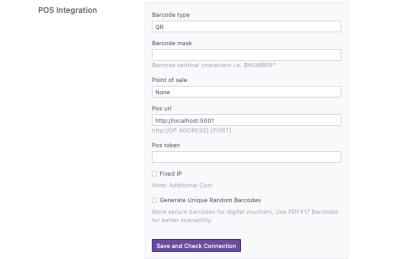
- Go to
Settings→POS. - Select OneTap as the Point of Sale.
- Enter the address of your API server, including the port, for example
http://123.12.34.123:5000. - Enter the credentials set during the API install.
- Use the test button to confirm Appropo can reach the server.
- Click
Save.
If the test fails, the cause is usually port forwarding or a firewall rather than the credentials.
2. Pre-allocate voucher accounts
Voucher codes are drawn from a block of accounts you reserve in OneTap ahead of time. With OneTap the pre-allocation is done in the POS first, then the range is added in Appropo.
- Pre-allocate a batch of accounts in OneTap.
- In Appropo, go to the
POSsection and select+ Addto add that account range. - Set whether the block is for Physical or Digital vouchers.
A thousand accounts is a sensible starting batch, for example a range of 80000 to 81000. Appropo will notify you when you are approaching the end of the current batch, so you can allocate the next one before you run out.
See Accounts for what the account fields mean.
3. Set your barcode format
CODE128 is the easiest format to scan and the usual choice for OneTap.
By default the account number is encoded on its own. If your terminals expect sentinel characters around it, add them as the Barcode Mask, for example %<CARDNO>?.
See Barcode format for the full set of barcode settings.
4. Test and go live
Sell yourself a voucher through the test checkout and redeem it at the counter before you switch Live on. See Test a real redemption for what to check.
If a voucher will not redeem, confirm the API server is online and reachable, then work through Troubleshooting.
Contact Support
If you need additional assistance, please contact your POS provider or support@appropo.io. Include details about the issue you’re experiencing so we can help resolve it as quickly as possible.